Every IT provider knows the ticket that cannot be worked remotely. A client calls for help, and the support app on their PC is gone. Someone tidied up the list of installed apps, a user stopped a service they did not recognise, or a cleanup tool decided it was clutter. The fix that should take five minutes now needs a site visit, or a long phone call talking someone through a reinstall.
Tamper protection is an option for custom builds that keeps the HopToDesk app where you put it. On a protected Windows PC, uninstalling the app or stopping its service needs an uninstall code that only your dashboard can show.
What it stops
- Uninstalling from the list of installed apps. Instead of removing anything, the app asks for the uninstall code from the IT provider. Without the right code, it stays installed.
- Uninstalling from the command line. A silent uninstall without the right code is refused and exits with code 5, so your scripts can tell the difference.
- Stopping the service. The HopToDesk service refuses requests to stop it, delete it or change how it starts, including requests from administrator accounts.
- Ending the process. If the service is killed anyway, Windows starts it again within five seconds.
- Closing the app. Tamper protection turns on Close protection, so users cannot exit the app or switch off incoming connections either.
Nothing changes for the person at the desk during normal use. They see the same app, and your technicians connect the same way.
Two kinds of code
Each protected build comes with two codes, and either one removes the app.
A code for each PC. Every protected PC that enrolls in your dashboard gets its own code. Open the device in the dashboard and choose Show next to Uninstall code. Use this one when a single machine is retired or handed back, so the code you share works on that PC and nowhere else.
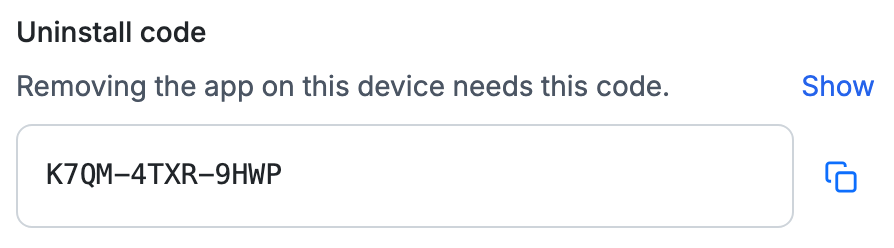
A code for the whole build. When you create the build, the dashboard shows its uninstall code once, and you can show it again later from the build list. It removes that build from any PC, including PCs that never enrolled in your dashboard. Keep it in your password manager, the way you would keep any master key.
Only owners and admins can show a code, and every time someone does, it is written to your activity log. The codes are checked on the PC itself, so they work even when the machine is offline.
Know when someone tries
A refused attempt is not silent. It is written to the device's history as a blocked tamper attempt, with whether it was an uninstall or a service stop. Turn on the Tamper attempt alert in Settings, under Alerts, and you get an alert with the name of the device as soon as it reports in.
That record is often the more useful half. A user trying to remove the support app is usually a user with a reason, and it is better to have that conversation before the next ticket than after it.
Setting it up
- In the dashboard, open Client Builder, then Advanced options, and tick Tamper protection. Close protection turns on with it.
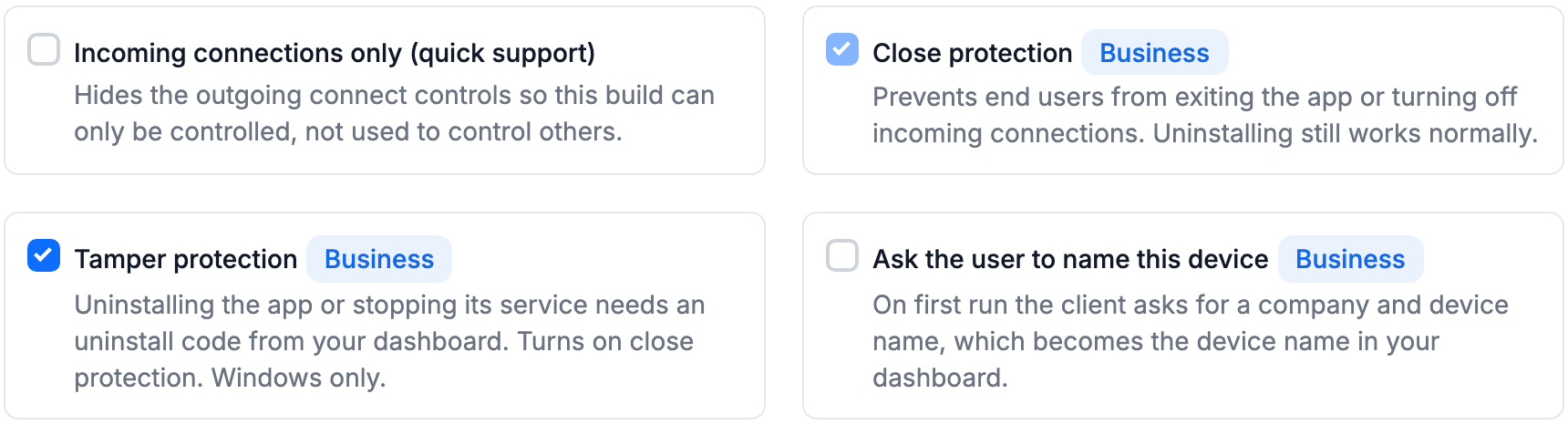
- Build the Windows installer, and store the build's uninstall code as soon as it appears.
- Roll it out the way you already do: send the installer, push it with your RMM or Intune, or combine it with auto-enroll so each PC joins your dashboard on its own. Each enrolled PC gets its own code.
- When a PC needs the app removed, show that device's code in the dashboard and enter it in the uninstall prompt. For a scripted removal, run the installed app with both flags:
"C:\Program Files\YourApp\YourApp.exe" --uninstall --uninstall-code XXXX-XXXX-XXXX
Use the path and file name of your own branded app.
Which plan
Tamper protection, Close protection and the Tamper attempt alert are part of the Business plan. Tamper protection works on Windows.
A support tool earns its keep in the moments nobody planned for, and those are exactly the moments when finding it gone hurts most. With tamper protection, the app you deployed is still there when the call comes in, and if someone tried to remove it, you already know.