
Every IT team knows the rollout that goes wrong. The installer works, the machines get the app, and then someone has to visit each one anyway: link it to the account, set a password, turn on unattended access, put it in the right group. The install was silent. The follow-up was not.
HopToDesk now handles the whole rollout in one pass. In the dashboard, open Deployment and choose Onboard a fleet. Four short steps give you one token and the exact command for the tool you already use. Every machine that installs with that token links itself to your account and arrives configured, with nobody at the keyboard.
Step 1: which machines is this for
Give the fleet a name, such as Head office workstations, so you can tell rollouts apart later. Then pick the group the machines should land in. The field suggests the groups you already have, so a new batch lands next to its neighbours instead of in a new group with a slightly different spelling.
If you manage machines for several customers, you can pick the customer here too. Every device that installs with this fleet's token is filed under that customer automatically.
You can also enter how many machines you expect. It is optional, and it powers the progress bar in step 4.
Step 2: how should these machines behave
These settings apply on first launch, to every machine that installs with the fleet's token:
- Unattended access, so nobody has to sit at the machine to accept a connection.
- A connection password for your technicians.
- Easy Access, so technicians connect from the dashboard with no password at all. Every session is authorized by your dashboard and logged.
- Account Access Only, so the machines accept only technicians signed in to your account, and refuse ID and password, access links and other HopToDesk accounts.
- Session recording, written on the device itself.
Under Network and sign-in options you can set an outbound proxy for sites where machines cannot reach the internet directly, and organizations with single sign-on can enroll through their identity provider instead of a token.
If you pick settings that would leave nobody able to connect, for example unattended access with no password and no Easy Access, the wizard says so before you save.
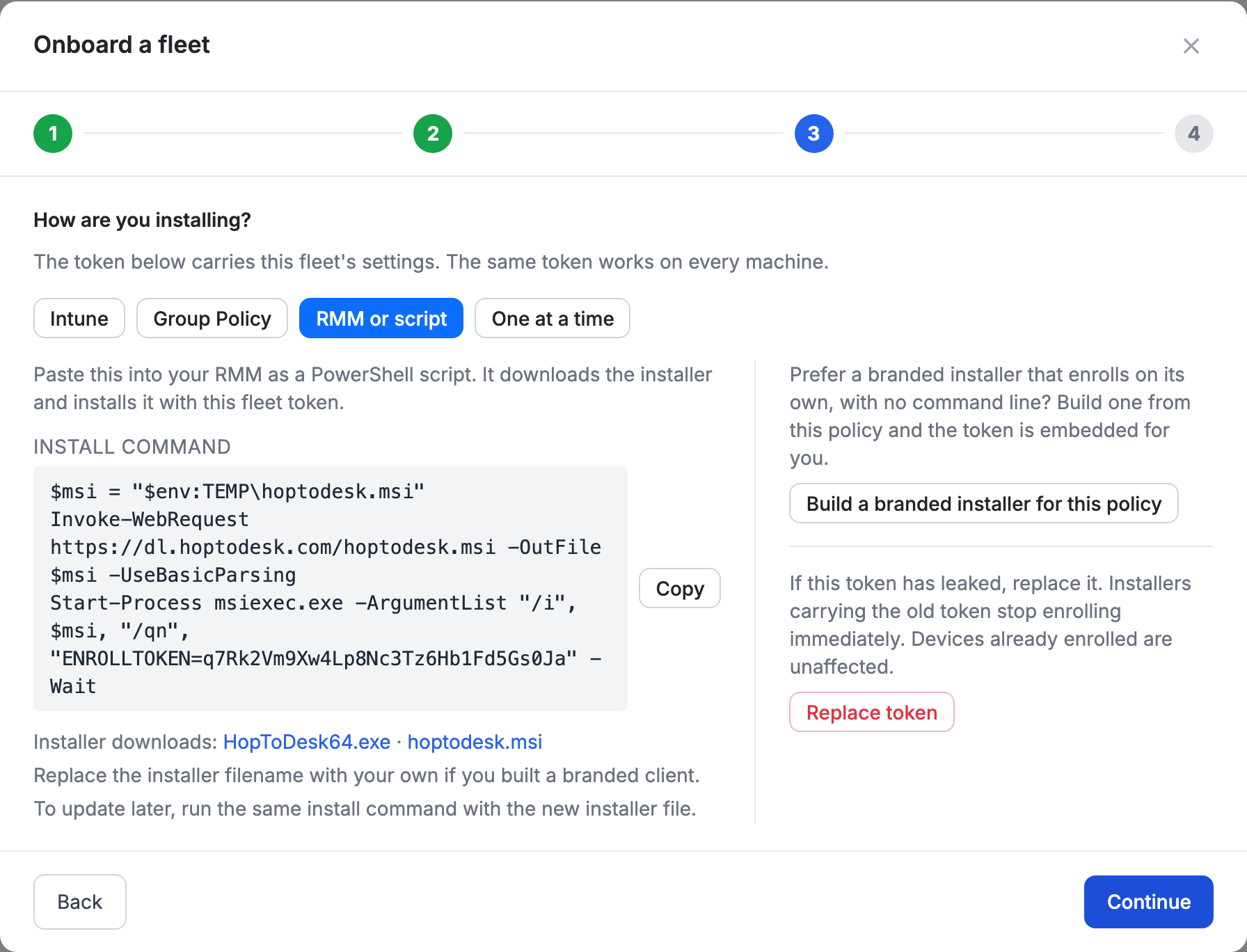
Step 3: how are you installing
Pick your tool and copy the command. The wizard fills in your real token, and the same token works on every machine in the fleet.
Intune. Upload the MSI as a line-of-business app and use:
msiexec /i hoptodesk.msi /qn ENROLLTOKEN=YOUR-FLEET-TOKEN
Group Policy. Put the installer on a share every machine can read, and run it from a computer startup script:
\\server\share\hoptodesk.exe --silent-install --enrollment-token YOUR-FLEET-TOKEN
RMM or script. Paste this into your RMM as a PowerShell script. It downloads the MSI and installs it with your fleet token:
$msi = "$env:TEMP\hoptodesk.msi"
Invoke-WebRequest https://dl.hoptodesk.com/hoptodesk.msi -OutFile $msi -UseBasicParsing
Start-Process msiexec.exe -ArgumentList "/i", $msi, "/qn", "ENROLLTOKEN=YOUR-FLEET-TOKEN" -Wait
One at a time. For a handful of machines, run this once on each, with administrator rights:
hoptodesk.exe --silent-install --enrollment-token YOUR-FLEET-TOKEN
The installer links for the EXE and the MSI sit right under the commands. The install runs fine as the SYSTEM account, which is how most RMM tools run their scripts.
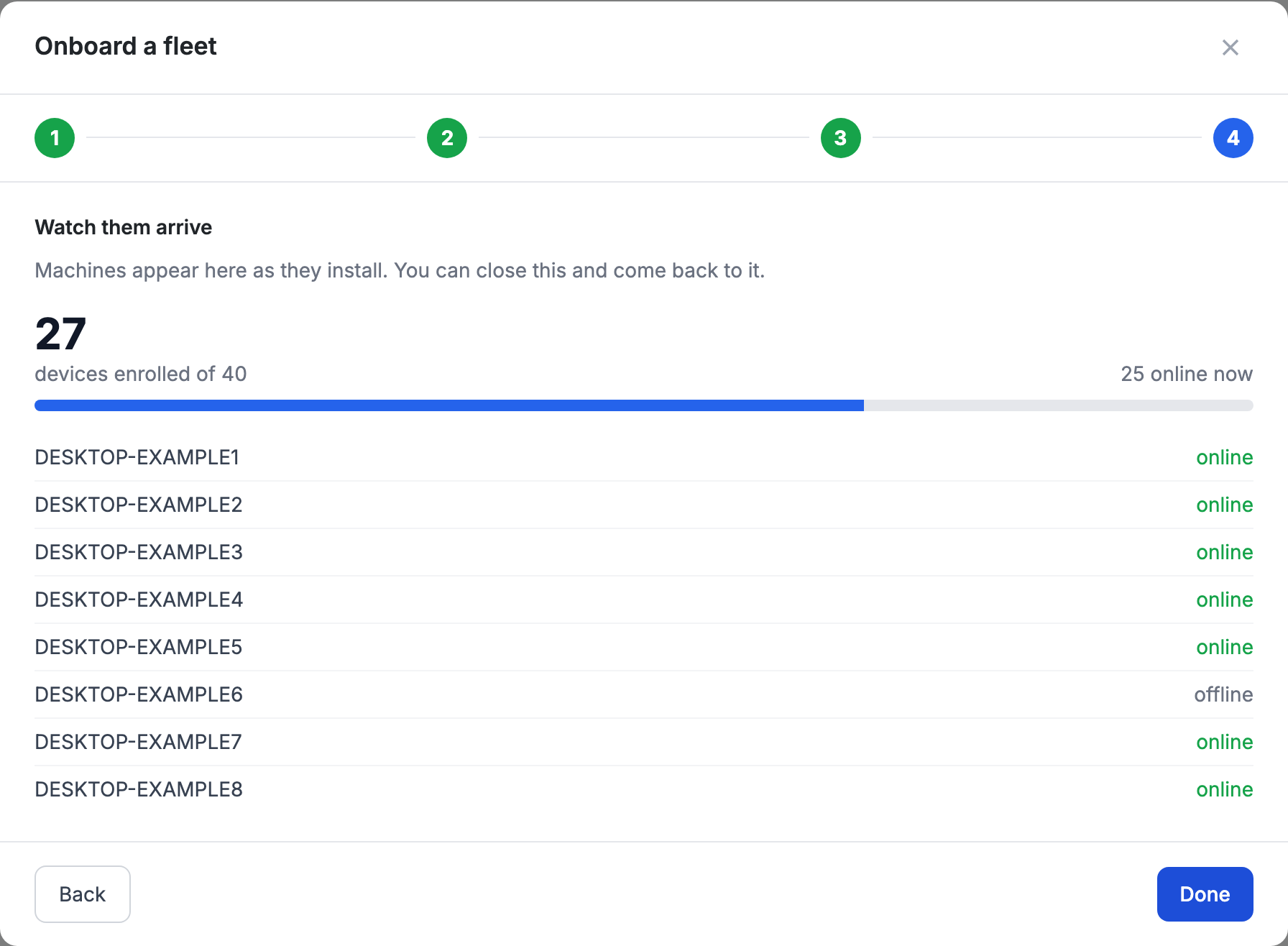
Step 4: watch them arrive
The last step is a live view. Machines appear as they install, with a count of how many have enrolled, how many are online right now, and a progress bar against the number you expected. You can close it and come back later. The fleet keeps its own progress on the Deployment page.
Details that matter at scale
Exit codes your tool can act on. Add --wait-for-enrollment to the EXE command and the installer waits up to a minute for the machine to link to your dashboard. It exits with 0 when the machine enrolled, 2 when it installed but enrollment was not confirmed in time, and 1 when the install itself failed. If you deploy the EXE through Intune with this flag, add 2 as a success code there, so a working install is not reported as a failure.
The person at the desk sees HopToDesk right away. After a silent install the tray icon starts in the signed-in session as soon as the service is up, with no sign-out or restart.
Updates use the same command. Run it again with the newer installer and the app is replaced in place. The machine keeps its settings and its enrollment. With the EXE, a silent reinstall also keeps the desktop and Start menu shortcuts the way the first install left them.
A leaked token is a two-second fix. Replace token issues a new one. Installers carrying the old token stop enrolling immediately, and machines already enrolled are not affected.
No command line at all, if you prefer. From the same screen you can build a branded installer for the fleet with the token already inside. Run it on a machine and the machine links itself.
Macs
The commands in the wizard are for Windows, where most fleets live. For Macs managed with Jamf, Kandji or Intune, the documentation walks through deploying the app and its privacy profile through your MDM.
Which plan
Fleet policies and the Onboard a fleet wizard are part of the Business plan. On other plans you can still add machines with a reusable invite link that many computers can share.