
Nobody stays with a remote desktop product because they love it. Teams stay because of the list. Years of devices, named and sorted into groups, wired into daily work. Moving that by hand means retyping hundreds of machines, reinventing the group structure, and chasing every endpoint one at a time. So the switch gets postponed, again, and the renewal gets paid, again.
The HopToDesk migration import is built to remove exactly that obstacle. It turns the device list from your current tool into an organized, trackable rollout, and it fits in an afternoon.
The tools it understands
The importer reads device exports from five products directly:
- TeamViewer
- AnyDesk
- Splashtop
- ConnectWise ScreenConnect
- Zoho Assist
You do not have to tell it which one you are importing. Each vendor's export has its own shape, and the importer recognizes it from the file itself. Coming from something else? Any CSV file with a device name column works too.
How the import works
Step one, export your device list from your current tool. Every product above has an export in its management console, and our migration guide shows where to find it for each one.
Step two, open Import Devices in the HopToDesk Dashboard and upload the file. The importer reads your device names and your groups, removes duplicates, and builds a migration manifest. Imports scale to thousands of devices in one file. The migration import is included with HopToDesk Business plans and above.
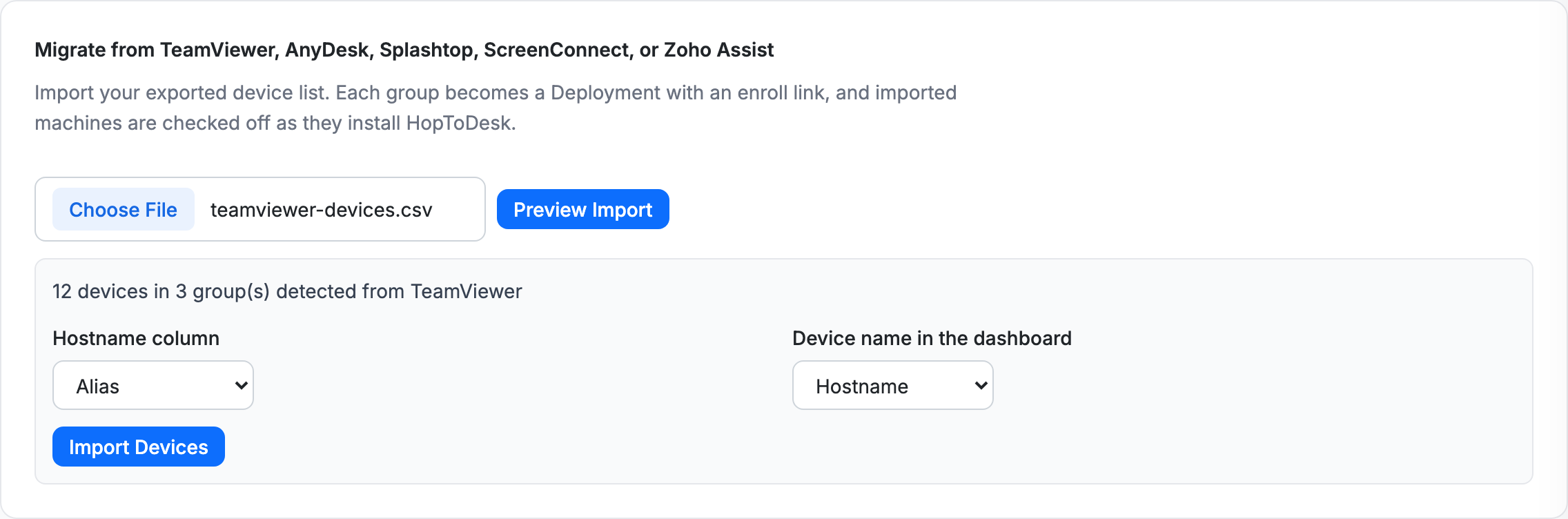
Step three, and this is the part that saves the afternoon: for every group in your old tool, HopToDesk automatically creates a deployment with its own enrollment link. Send each group's link to the right machines, or push the installer with the tool you already use for software rollout. Any device that installs through its link lands in your dashboard already in the right group. Your organization survives the move.
Watching the move happen
A migration is not done when the file uploads. It is done when the machines arrive. The dashboard tracks your manifest against reality: as each imported device installs HopToDesk and connects, it is matched by name and checked off. At any moment you can see which machines have made the crossing and which are still waiting, so the follow-up list writes itself.
The matching is honest, too. Only devices that enrolled after your import count as migrated, so a machine that was already in your account does not inflate the numbers.
For MSPs moving client fleets
If you manage multiple customers, the import can assign incoming devices to a client during the import. A customer's fleet moves from the old tool straight into that customer's own space in your HopToDesk console, keeping every tenant's devices separate from the first minute.
What the afternoon looks like
- Export the device list from your current tool. A few minutes.
- Upload it to HopToDesk. Seconds, including the automatic group setup.
- Roll the enrollment links out to your machines. This is the part that varies, but it is installation work, not organization work, and you can do it group by group at your own pace.
- Watch the checklist fill in, and chase the stragglers it shows you.
Both tools keep working during the transition, so there is no cutover moment and no gap in coverage. Run them side by side until the last machine crosses, then retire the old one.