Most IT work is not hard. It is repetitive. The same disk check on fifty laptops, the same service restart at two offices, the same round of questions every time someone says their computer is slow. Each one takes a few minutes, and a few minutes times every machine is most of a week.
The HopToDesk Dashboard has a set of tools for exactly that work. You find them under Fleet, then Automation, and the AI Assistant opens from the button at the top of every dashboard page.
This article was first published in April 2026, when these tools lived together in a section called Agents. They have since moved to the places described here, and the article has been rewritten to match.
Tags and operations: the building blocks
Everything below targets machines by tag. A tag is a short label you put on a device from the Devices screen: workstation, office-nyc, prod, client:acme. A device can carry up to 32 of them, so a single server can be linux, prod and office-nyc at the same time, and any of those tags can reach it.
What runs on those machines is a fixed set of operations built into the HopToDesk app:
- Diagnostics:
get_system_info,disk_usage,list_processes,network_info,get_service_logs,ping_test,installed_software,get_security_posture. - Management:
restart_hoptodesk,kill_process,flush_dns. - Maintenance:
reboot_device,clear_temp_files,run_update_check.
The dashboard sends the name of an operation, never a shell command, and the app on each device knows how to carry it out on its own operating system. Parameters are checked before anything is sent, so a process name cannot smuggle in a command. Three operations wait for a person's approval by default: kill_process, reboot_device and clear_temp_files.
Remote Exec: nothing runs until you turn it on
Remote command execution is off on a new account. An owner turns it on in the Remote Exec tab of Automation, and chooses which devices take part, one by one or all at once. The same tab sets an hourly limit on commands, 30 an hour unless you change it. Turn the account switch off and fan-outs and runbooks stop sending commands straight away.
Fan-Out: one command, many machines
The Fan-Out tab runs one operation on every machine in a target: a set of tags, a hand-picked list of devices, or all of them. Before anything is sent, it shows how many devices the target resolves to, so a typo in a tag shows up as a surprising number rather than a surprising outage.
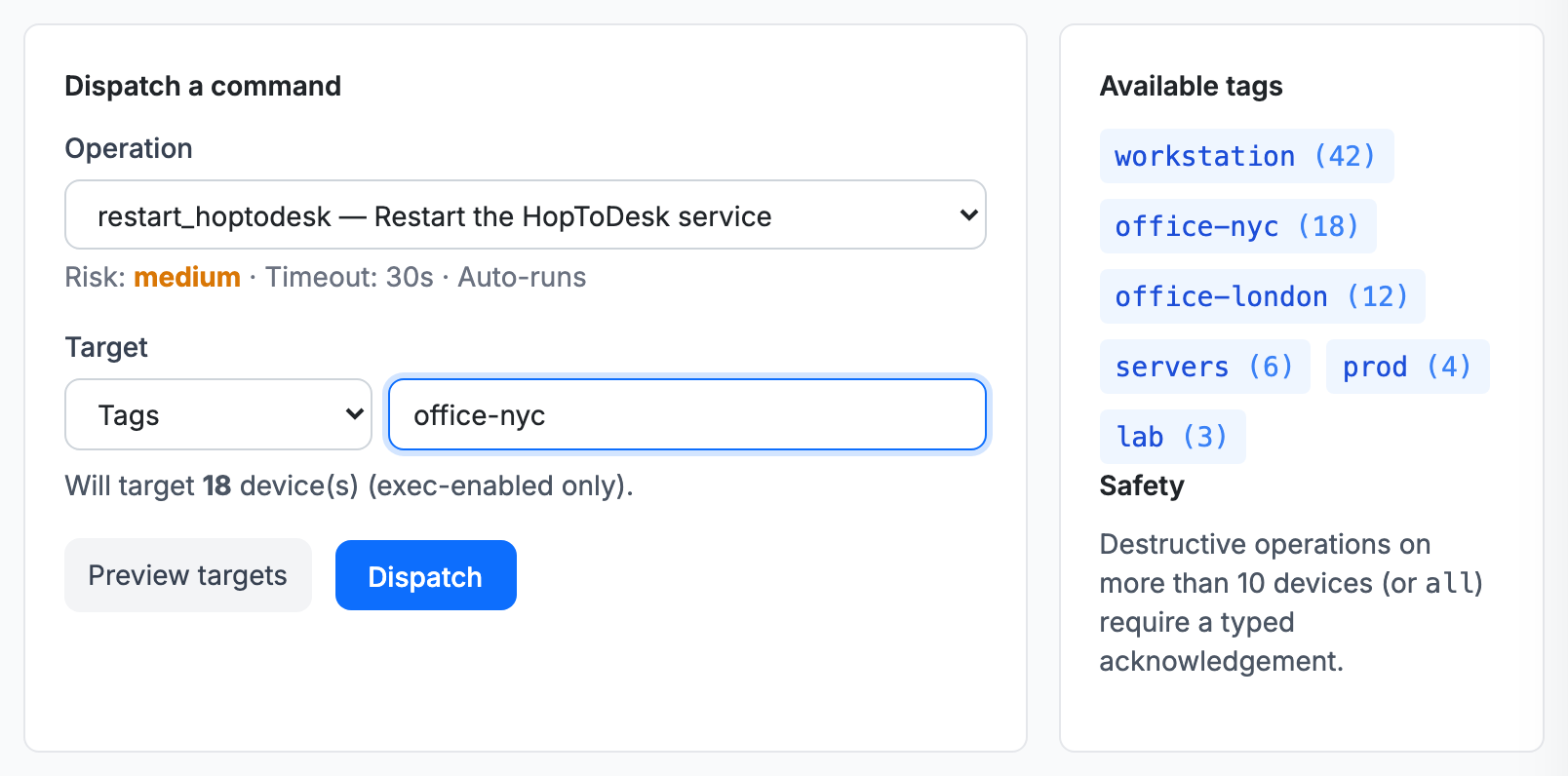
Each device gets its own command and its own result, and the job shows progress as they come back. A running job can be cancelled by an admin: anything still waiting for approval is dropped, and anything already running on a device finishes. For a destructive operation on more than ten devices, or any operation aimed at every device, the dashboard asks you to type the operation's name before it goes.
Runbooks: the same job, on a schedule
A runbook is a fan-out with a timetable. Pick the operation and the target, then how often: every so many minutes, or daily or every few days at a fixed time in UTC. The scheduler checks every five minutes and starts whatever is due.
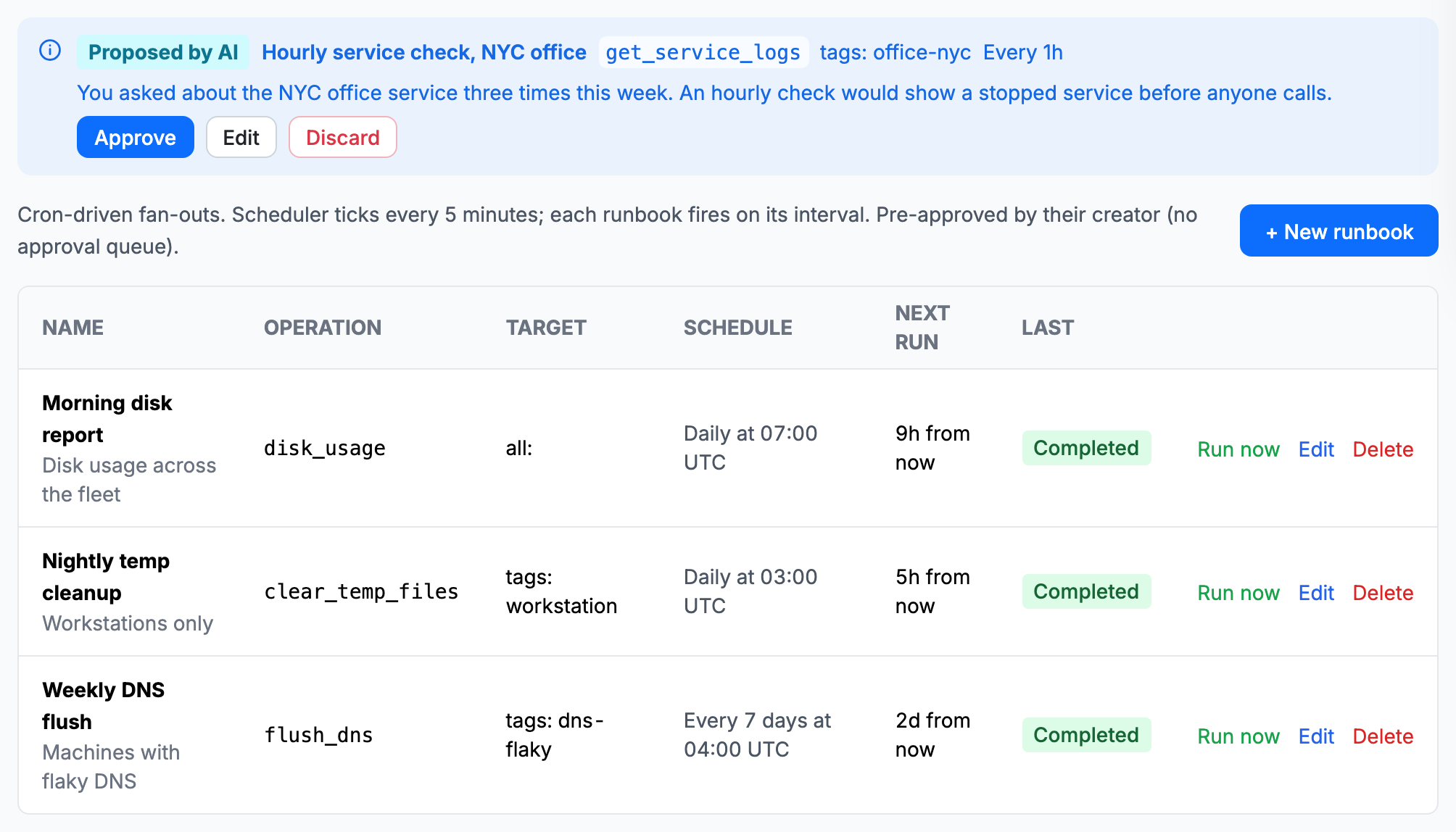
Saving an enabled runbook counts as approving it, so keep runbooks for operations you have already vetted. Run now starts one straight away, which is the easy way to test a new runbook before trusting its schedule. Switch a runbook off and it keeps its settings, it just stops running.
Good first runbooks are the dull ones: a morning disk_usage report across every machine, a nightly clear_temp_files on workstations, a weekly flush_dns on the handful of machines that keep having name resolution trouble.
Rules and approvals: decide what needs a person
Anything that needs approval waits in the Approvals tab until an owner or admin approves or rejects it. Rules decide what gets there in the first place.
A rule matches on three things: the role of the person asking, the operation, and a device tag. The operation can be an exact name, a whole category such as diagnostics:*, or anything at all. Each rule either approves or denies, and rules are checked in priority order, lowest number first, so a narrow deny can sit above a broad approve.
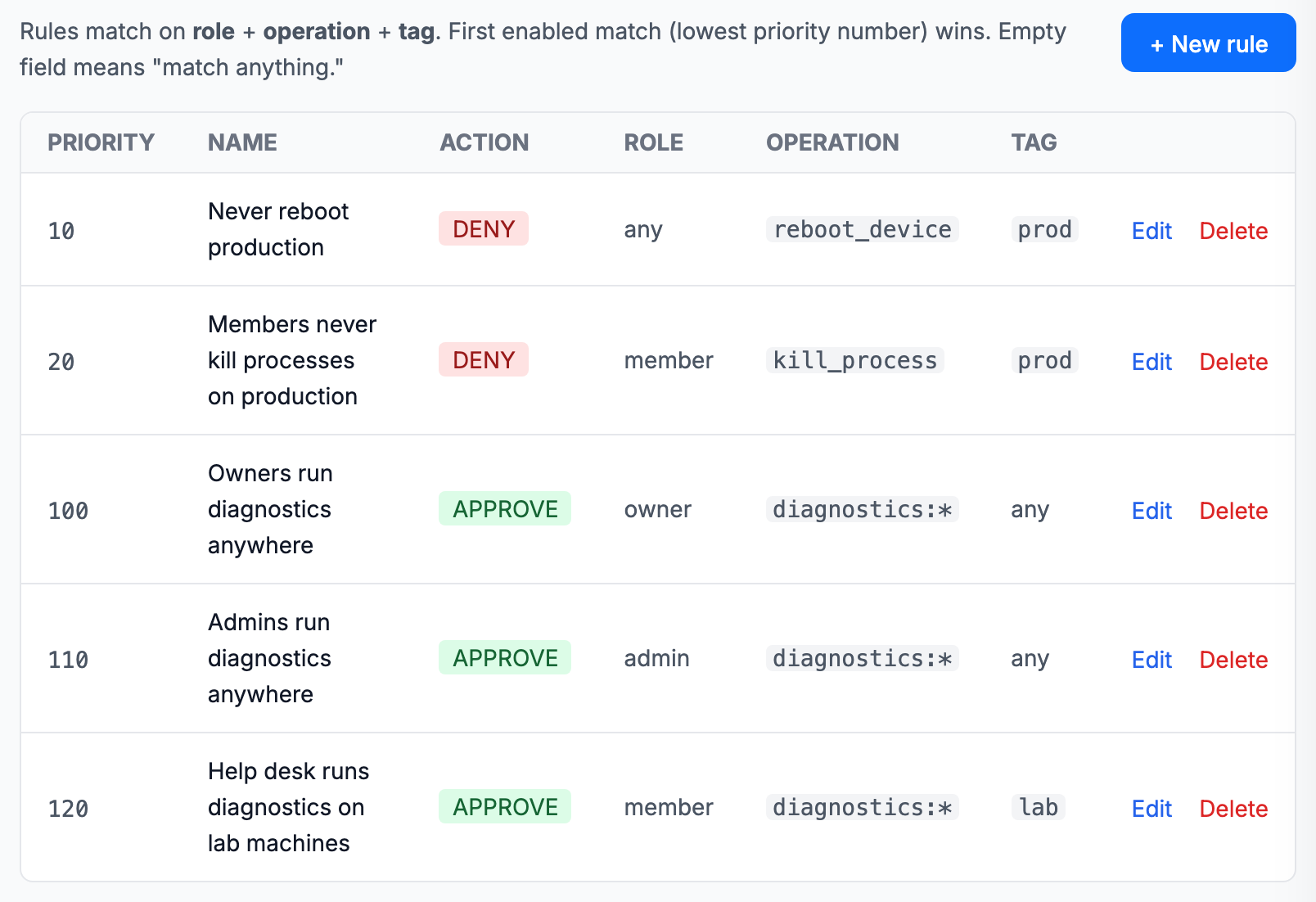
The set above is a common starting point. Nobody reboots production by accident, the help desk cannot kill processes there, owners and admins run diagnostics anywhere without waiting, and help desk staff run diagnostics on lab machines. Everything else goes to the approval queue as usual.
The AI Assistant: for the problems that do not fit a script
Fan-outs and runbooks are for work you can describe in advance. Some problems start as "the reception PC is slow" and nothing more. That is what the AI Assistant is for.
Open it from the AI Assistant button, or from a device or a ticket so it already knows which machine you mean, and describe the problem in plain language. It runs the same diagnostic operations a technician would, such as get_system_info, list_processes and disk_usage, shows you what it ran, and tells you what it found. It goes through the same approval rules as everyone else, and it needs remote execution turned on for the devices it works on.
When you keep asking for the same thing, it can suggest making it permanent. It drafts a runbook or a rule as a proposal, like the hourly check waiting for approval in the Runbooks picture above, and nothing it proposes runs until an owner or admin approves it.
The AI Assistant is switched on separately, from its own panel, and runs on prepaid credit that you add under Settings. Each answer shows what it cost.
A record of everything
The History tab lists every fan-out job and every command, with the result from each device and who or what asked for it: a person, a runbook, the AI Assistant or a connected AI app. Any job exports as a CSV file, which is the shortest answer to an auditor asking for proof that every machine was checked. Passwords, tokens, keys and email addresses are removed from command output before it is stored.
Plans
Device tags and Fan-Out are part of the Pro plan and up. Rules and scheduled runbooks are part of the Business plan. The same operations are also available to your own tools and AI apps through the HopToDesk API and MCP, with keys you create in Settings.
A sensible first hour
- In Fleet, Automation, open Remote Exec, turn remote execution on, and enable it on the devices you want to manage.
- Tag those devices on the Devices screen, by role and by location.
- Fan out
get_system_infoto one tag and read the results in History. - Add one rule that lets owners and admins run
diagnostics:*without waiting. - Save one runbook, such as a daily
disk_usagereport, and press Run now once to see it work.
None of this needs to cover everything on day one. One tag, one read-only check and one schedule already take a recurring chore off someone's list, and every rule you add after that is one less thing waiting for a person to click Approve.