
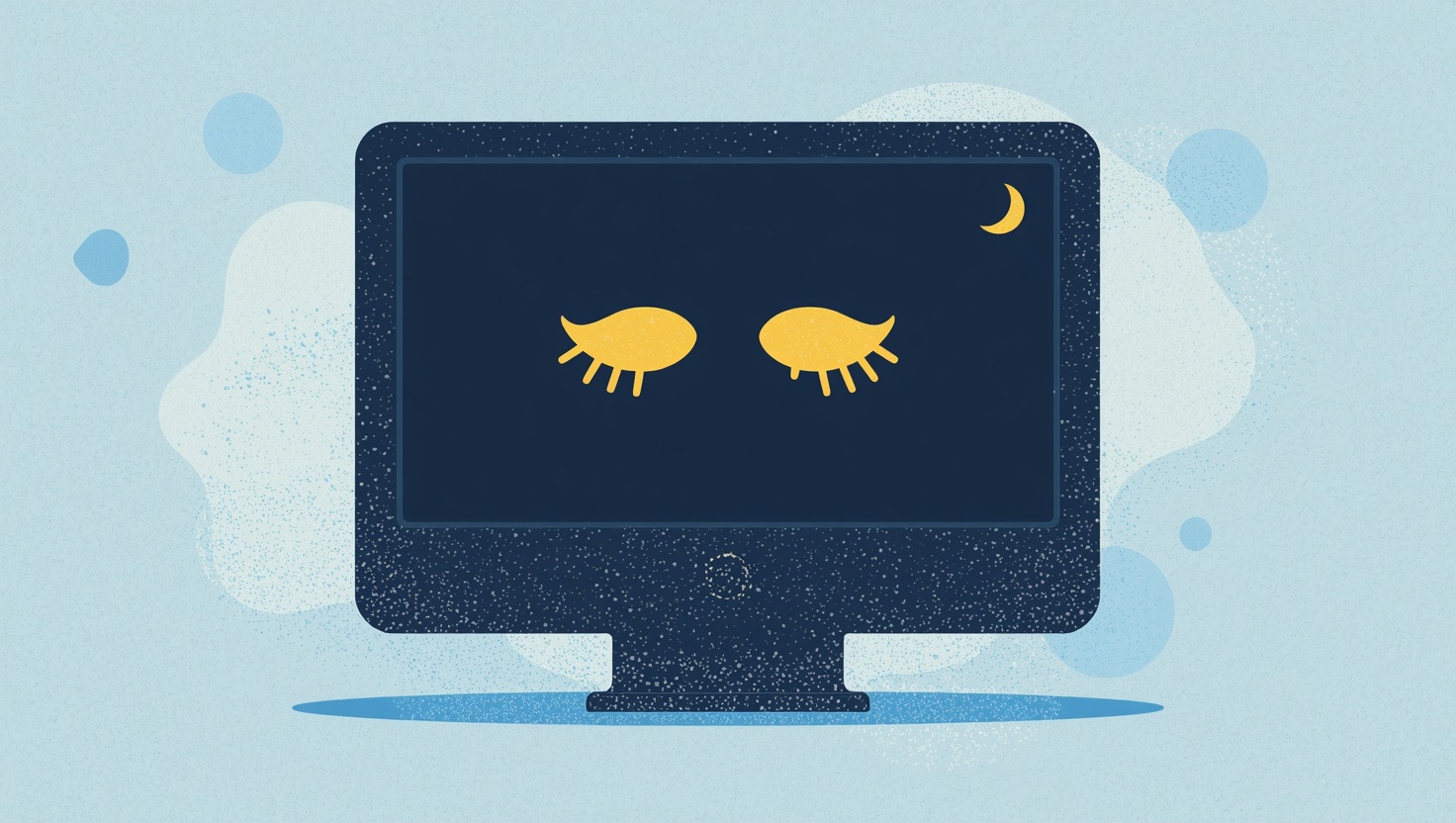
When a technician connects to a computer for remote support, everything they do is visible on the remote computer's physical screen. Anyone walking by can watch the mouse move, see files being opened, and read whatever is on the display. For routine tasks that might be fine, but when sensitive work is involved, you need a way to keep the physical screen private. That's what Privacy Mode is for.
What Privacy Mode Does
Privacy Mode lets the connecting technician black out the remote computer's physical display and lock its local keyboard and mouse. With a single click in the session toolbar, the screen on the remote machine goes dark and anyone sitting in front of it can no longer see or interact with what's happening. The technician continues working normally through the remote session, but the work is invisible to anyone physically present at the remote device.
This isn't a simple overlay or dimmed wallpaper. On Windows, HopToDesk uses display-level techniques to prevent screen capture entirely, including a virtual display mode that disables physical monitors and replaces them with a blank virtual screen that only the remote session can see. On macOS, every connected display is blacked out at the hardware gamma level. These protections can't be bypassed with a screenshot tool or screen recorder. The physical display is genuinely blank.
When You'd Use It
Privacy Mode is valuable any time a technician needs to work on a remote machine without the screen being visible locally:
Sensitive IT work: Resetting passwords, configuring security settings, or accessing admin panels on a computer in a shared office where coworkers can see the screen.
Compliance requirements: In healthcare, finance, and other regulated industries, visible access to sensitive data on a shared screen may violate compliance policies.
After-hours maintenance: Performing updates or configuration changes on a machine in a public area like a reception desk or shop floor, where the screen would otherwise show everything to passersby.
Client privacy: Support technicians working on a client's machine while the client steps away, keeping their work private until the session is complete.
The Remote User Can Still Exit
Even though the technician controls when Privacy Mode turns on and off, the person at the remote computer always has an escape. Pressing Ctrl+P on the physical keyboard instantly restores the screen and unlocks local input. No menus, no confirmations. This means the remote user is never truly locked out of their own machine.
How It Compares
Many remote desktop tools offer some form of screen blanking, but implementations vary. Some only hide the desktop wallpaper while the taskbar and notifications remain visible. Others require administrator privileges or paid add-ons. HopToDesk's Privacy Mode works at the display and input level, blanking the screen completely and blocking local keyboard and mouse input in a single toggle. It's available on Windows and macOS, and it doesn't require a paid subscription.
A Small Feature That Makes a Big Difference
Privacy Mode is easy to overlook in a feature list, but for IT teams and support professionals who regularly work on machines in shared spaces, it's essential. It protects sensitive information, keeps sessions professional, and gives both sides confidence that the right people are seeing the right things. Privacy Mode is just one of many useful HopToDesk features, check it out for free at hoptodesk.com.
Fast, secure remote desktop for individuals and IT teams, with a dashboard to manage every device in one place.