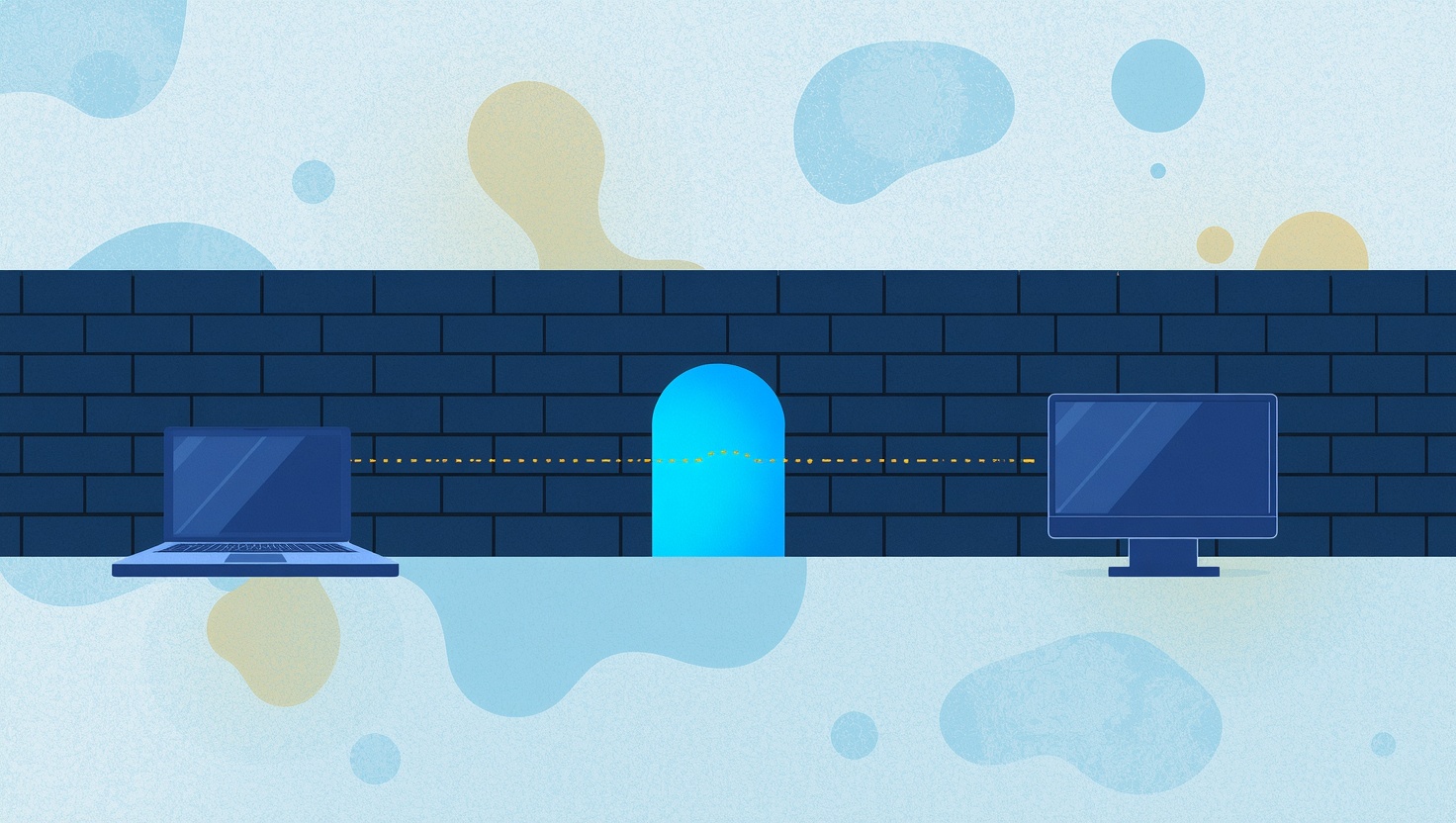
Every support technician knows this call. The computer is fine, the person is ready, the software is installed, and the connection simply will not come up. The problem is almost never the machine. It is the network around it.
Many networks allow only one kind of outbound traffic: the kind a web browser uses, on port 443. Hotel and guest Wi-Fi, hospital and clinic networks, schools, banks, government offices and plenty of ordinary company networks work this way. Web pages load, email syncs, and everything else is quietly dropped. A remote desktop tool that needs other ports just fails, usually without a useful error.
HopToDesk Firewall Mode fixes that. A device in Firewall Mode needs nothing more than the port 443 that is already open for the web.
What you gain
It works where remote access usually fails
In Firewall Mode, a device reaches the other side through a HopToDesk relay on port 443, instead of dialing a separate port for each session. There is no port range to open. Firewall Mode needs only outbound port 443 to HopToDesk's servers, the same port most networks already leave open for everyday browsing.
No firewall change requests
Getting remote access through a locked-down network normally means a ticket to the network team, a discussion about which ports to open, and a wait. Firewall Mode removes that whole conversation. You do not ask anyone to widen the firewall, and the security team does not have to punch new holes in it. The network stays exactly as strict as it was.
It helps even when it is off
You do not need to know in advance which networks are strict. When a device with Firewall Mode off cannot make its normal connection, it falls back to port 443 through the HopToDesk relays for that session, on its own. The person on the other end sees a session come up, not an error.
Turning the mode on simply skips that first attempt. For a machine you know sits behind a strict firewall, every connection starts faster.
Still fast in the office
A strict firewall at the edge of a network does not slow down a technician on the same network. A session to a device in Firewall Mode tries a direct local connection and the port 443 relay at the same time, and the faster one wins. On the same LAN, the direct connection wins, so local sessions stay as quick as ever.
Still private
Firewall Mode changes the route, not the protection. Every session is still encrypted end to end by the HopToDesk app, and the relay only passes along data it cannot read. The relays are HopToDesk's own servers in the United States, Europe and Asia.
Turning it on
For one machine, go to the device behind the strict firewall, the one you connect to. Open Settings, then Network, and turn on Firewall Mode. The device you connect from needs a current version of the HopToDesk desktop or mobile app.
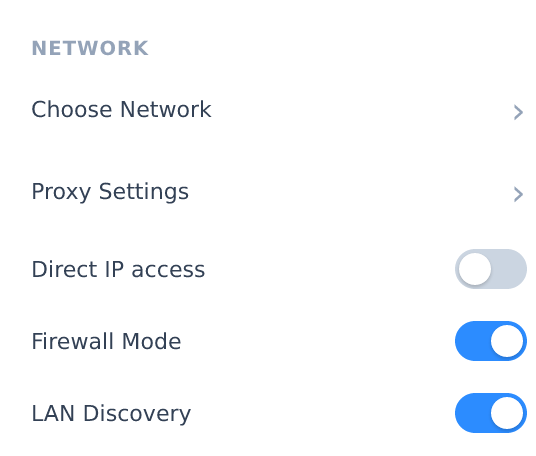
For a whole fleet, build it in once. In the HopToDesk Dashboard, open Client Builder, then Advanced Options, and set Firewall Mode to On as a locked setting. Every installer you hand out then works over port 443 from its first start, and nobody has to open Settings on each machine. Pair it with auto-enroll and each installed device joins your dashboard too. Advanced Options are included from the Pro plan up, and mass deployment is part of Business.
The network only needs outbound port 443 to a short list of HopToDesk hosts. The full list, and the details your network team will want, are in our Firewall Mode documentation.
Who it is for
- Help desks and MSPs supporting clients in hospitals, clinics, banks, schools and government offices, where the network is locked down by policy.
- Technicians who travel and connect from hotel, airport and conference Wi-Fi.
- IT teams that want remote access without widening their own firewall rules.
- Anyone who has lost the first ten minutes of a support call to a connection that would not come up.