Most file transfers in a remote session start the same way. The file is right there on your screen, and you want it on the other computer. Until now that meant opening a second window, finding the same file again, finding a folder on the far side, and then moving it.
HopToDesk 1.46.80 cuts that down to one click. On Windows, right-click the file and choose Send to connected device. It is on its way.
The same release has a new File Transfer window, for the times you do want to look around both computers.
Right-click, send
Start a session as usual. Then, in File Explorer, right-click a file or a folder and choose Send to connected device. On Windows 11 the item sits in the short menu. If it is not there, click Show more options.
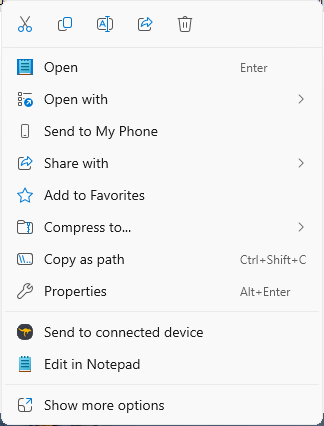
The file goes to the Downloads folder on the other computer. The File Transfer window opens by itself, so you can watch the progress.
A few details that answer the next question:
- Select several files first to send them together.
- If Downloads already holds a file with that name, yours is saved as report (1).pdf. Nothing gets overwritten.
- With more than one session open, the file goes to the session whose window is on top.
- With no session open, HopToDesk tells you to start one first.
The other direction
Files often need to travel back. A log from a customer's machine, a scan, the export someone just made.
The same right-click works on a remote Windows computer, whether the person sitting there does it or you do it inside the session. The person in control then sees a question:
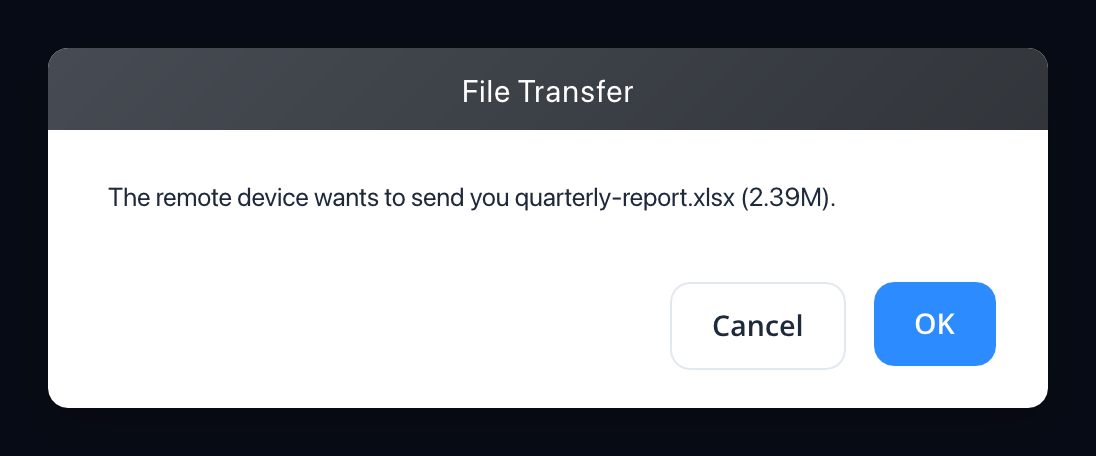
Click OK and the file lands in your Downloads folder. Click Cancel and nothing moves.
That question comes up for every file, every time. A remote computer cannot use this to put a file on your machine without your click, and that is the right rule for support work, where you spend your day connected to machines you did not set up.
This direction needs 1.46.80 or newer on both computers.
A new File Transfer window
Right-click is for when you already know which file you want. When you need to look around, click Transfer File in the session toolbar, or type a device ID in the main window and click Transfer File there.
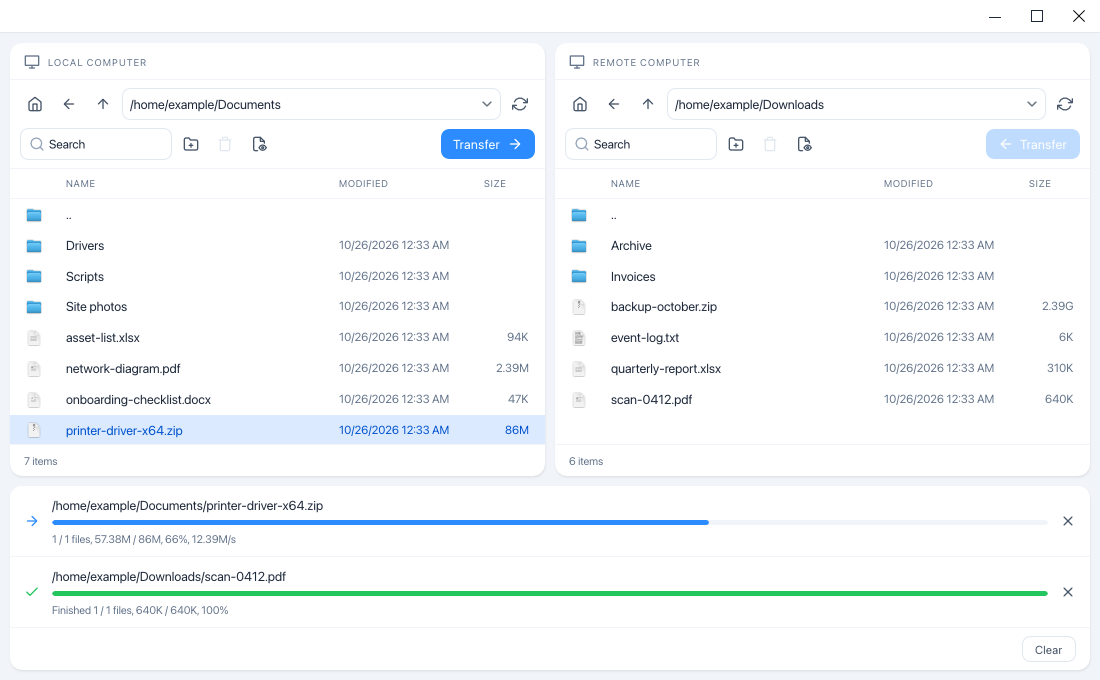
The layout is simple now:
- Two equal sides. Your computer is on the left under Local computer, the other one is on the right under Remote computer.
- One button. Each side has a Transfer button, and its arrow points to where the files will go.
- Progress only when there is some. A strip shows up below the two sides while files are moving, with a progress bar on every job. Click Clear and it goes away.
- Lists that stay in order. Folders and files stay grouped when you sort, and one click on Modified puts the newest first.
A few smaller things make it quicker to use:
- Open it from a session and it uses the login you already gave, so a typed password is not asked for again.
- Type ~ in the path box to jump to the home folder.
- Type in Search to filter the folder, and press Enter to search the folders inside it.
- Right-click a file to Transfer, Rename or Delete it, or just drag it across.
- Leave a folder with thousands of files open and the window sits idle at almost no CPU.
The remote computer stays in charge
A shorter path does not mean looser rules. Right-click sends follow the same rules as the File Transfer window.
If File Transfer is off on the remote computer, in its settings or by a dashboard policy, nothing goes through. Switch it off during a session and the next file action is refused, even in a session that is already open.
File Transfer cannot add, rename or delete files on a Windows, Mac or Linux desktop that is sitting at its sign-in screen. Sign in first, then reconnect to upload.
Which one to use
There are now four ways to move a file, and each one suits a different moment:
- Right-click, when you know the file and just want it over there.
- The File Transfer window, when you want to pick the folder, browse, or move a lot at once.
- Drag a file onto the session window, Windows to Windows, to paste it right where you drop it. Enable file copy and paste must be on in Display settings.
- Copy and paste, Windows to Windows, when the file is already in front of you on one side and the folder is open on the other.
The new File Transfer window is in HopToDesk 1.46.80 on Windows, macOS and Linux. Send to connected device is in the installed Windows app from 1.46.80.