
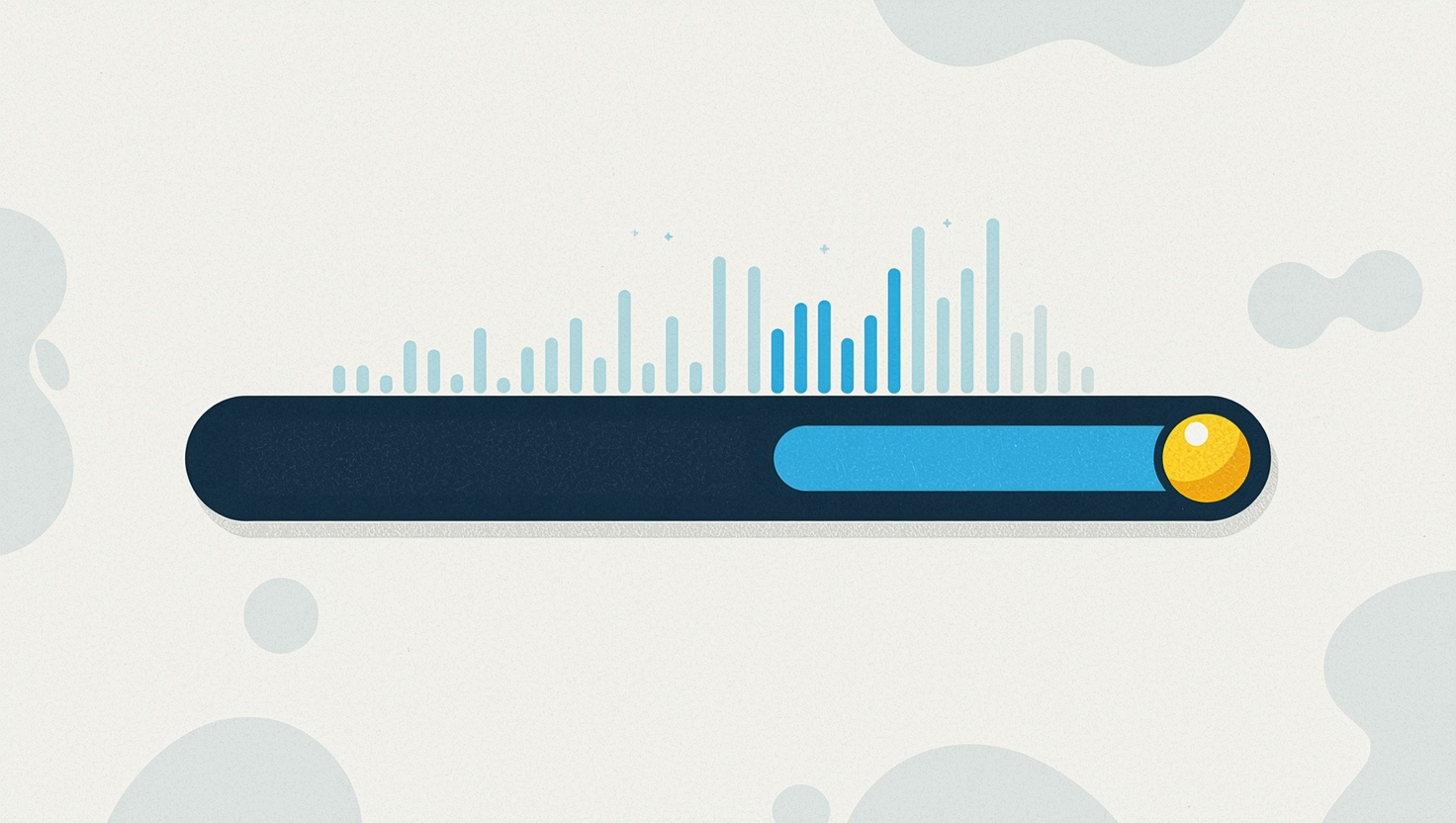
Sharpness gets all the attention in remote desktop software. Quality presets, bitrate sliders, codec choices. But the thing that decides whether a session feels like the machine in front of you, or like a slideshow of it, is simpler: how many times per second the picture refreshes.
That number now has its own control. Open the Display Settings button during a session and you will find Frame rate under the quality presets. It opens a slider from 5 to 120 frames per second. The default is 30.
Why raise it
Thirty frames a second is a sensible default. For reading a log file, clicking through a settings panel or walking someone through an installer, you would never notice anything higher.
You notice it the moment anything moves:
- Video, animation and anything with a timeline.
- Design and CAD work, where you drag an object and want it to follow the pointer.
- Scrolling long documents or code, where 30 frames turns smooth scrolling into steps.
- Drawing, sketching and handwriting on a tablet.
- Testing software with motion in it, where a stutter you cannot tell from a real bug wastes an hour.
On a local network with a modern machine at each end, 60 frames a second makes the session feel like a monitor cable. It is a bigger difference than another step of image quality.
Why lower it
The slider goes down to 5 for a reason. Fewer frames means less data, and sometimes less data is exactly what you want:
- A hotel connection, a phone hotspot or satellite internet.
- A metered link where every megabyte is billed.
- A small cloud server that pays for outbound traffic.
- A battery powered machine at either end.
- A machine with a weak processor, where encoding the picture is the bottleneck.
At 10 frames a second a session is still perfectly usable for text work, and it costs a fraction of the bandwidth.
It is a ceiling, not a promise
The number you pick is the most you are asking for. The session still adapts.
If the network cannot carry what you asked for, HopToDesk lowers the frame rate on its own and takes whichever is lower, your setting or what the link can actually sustain. The remote machine also cannot send frames faster than its screen produces them. So setting 120 on a thin connection does not break anything. It simply will not get you 120.
This is the right way round. You set the ceiling, the session finds the best it can do under it.
Checking what you are really getting
In the same Display menu, turn on Show quality monitor. A small readout appears over the session with four live numbers:
- Speed, the data rate in use
- FPS, the frames per second you are actually receiving
- Delay, the round trip in milliseconds
- Target Bitrate
Raise the frame rate and watch FPS. If it climbs and Delay stays flat, the link had room to spare. If FPS stays put and Delay grows, you have found the limit of the connection, not of the software.
It stays where you put it
Two small things make the setting practical rather than a toy.
It saves per machine. Set 60 for the workstation you edit video on, leave the office server at 30, and each one remembers its own number the next time you connect.
It survives a quality change. Switching between the quality presets keeps your frame rate. Sharpness and smoothness are separate choices, and changing one no longer undoes the other.
Where to find it
During a session, open the Display Settings button in the toolbar. Frame rate sits just below the quality presets, separated from them. Drag the slider, and the value next to it updates as you go.
It is in HopToDesk 1.46.52, on Windows, macOS and Linux, free for personal and business use. Get it at www.hoptodesk.com/download.
Fast, secure remote desktop for individuals and IT teams, with a dashboard to manage every device in one place.