
You set up one computer the way you want it. Clipboard on, Remote Terminal off, sessions approved with a click, and only your office network allowed to connect. Then forty more computers need the same setup, one Settings screen at a time.
HopToDesk 1.46.90 cuts that work down. You save the settings of one computer to a file. Then you apply the file to the other computers.
Save the settings of one computer
- In the HopToDesk main window, click the gear icon.
- Scroll down and click Export Settings.
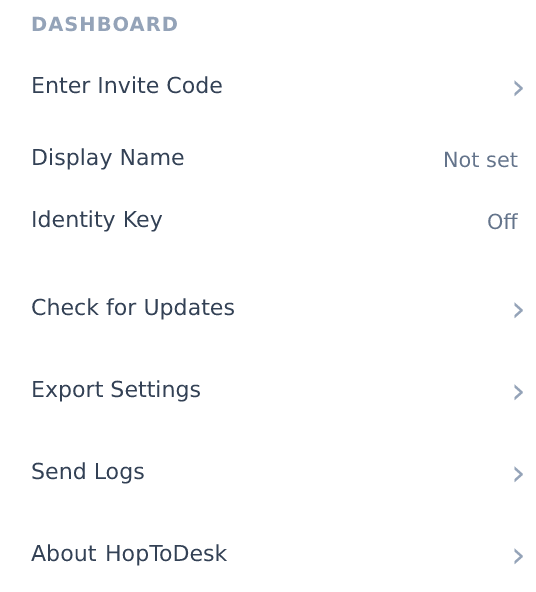
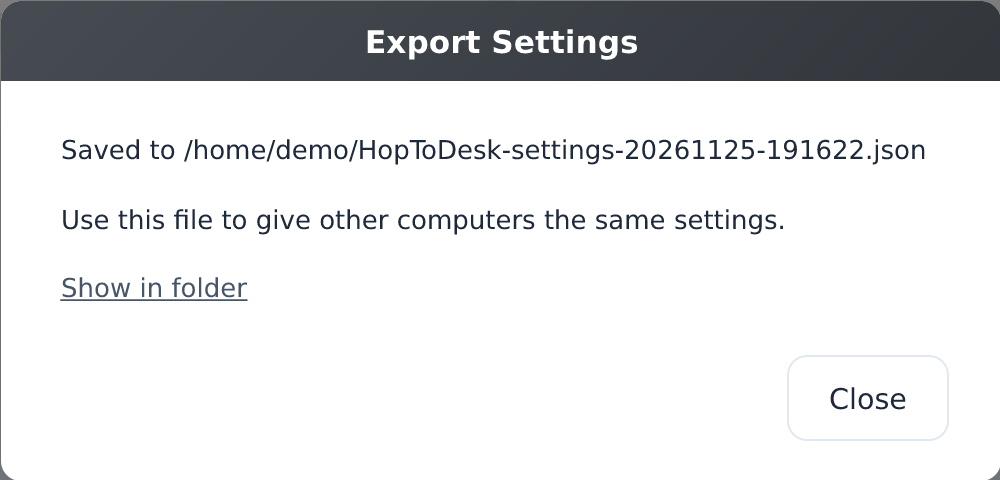
The app saves a settings file with the date and time in its name. A message shows where the file is, and Show in folder opens that folder.
You can also save the file from a command line:
hoptodesk.exe --export-settings C:\Deploy\HopToDesk-settings.json
What the file holds
The file holds 20 settings:
- The remote access switches: Keyboard/Mouse, Local Mouse Priority (Windows only), Clipboard, File Transfer, Remote Restart, TCP Tunneling, Remote Terminal and Enable Audio.
- The network switches: Direct IP access, Network Compatibility, Allow Direct Connections, Send Server Name and LAN Discovery.
- How a session starts: with a password, a click or either, and which password works (one-time, permanent or both).
- Who can connect: the IP Whitelisting list, Unattended Access, and if a remote session can change the settings.
- Recording: Automatically record incoming sessions, and Delete Recordings After.
The file never holds the device ID, passwords, keys, server or proxy settings, or the link to your dashboard. Each computer keeps its own ID, so one file can go to all of them.
Apply the file to another computer
The import needs the installed app and administrator rights. Copy the file to the computer, then run the command for its system.
On Windows, in a command prompt opened as administrator:
hoptodesk.exe --import-settings C:\Deploy\HopToDesk-settings.json
On macOS:
sudo /Applications/HopToDesk.app/Contents/MacOS/hoptodesk --import-settings ~/HopToDesk-settings.json
On Linux:
sudo hoptodesk --import-settings ~/HopToDesk-settings.json
The command says how many settings it applied. If it skipped a setting, it names the setting and gives the reason.
The import replaces what the computer had. Each of the 20 settings takes its value from the file, the IP Whitelisting list too. Check that list before you send the file to computers on other networks.
Apply the file during a silent install
On Windows, add --settings-file to a silent install, with the full path of the file:
hoptodesk.exe --silent-install --settings-file C:\Deploy\HopToDesk-settings.json
It works together with an enrollment token or an invite code. The computer then joins your dashboard and gets your settings in the same step:
hoptodesk.exe --silent-install --enrollment-token YOUR-FLEET-TOKEN --settings-file C:\Deploy\HopToDesk-settings.json
If the file is missing, or if it is not a HopToDesk settings file, the installer stops before it installs anything. The rest of a large rollout is in Silent Deployment.
What the file does not change
Two kinds of settings stay as they are:
- A setting that is locked in your own branded app, made with the Client Builder.
- A setting that a dashboard device policy sets.
The import lists these as skipped, with the reason.
The file can turn Unattended Access on, but it never carries a password. Each computer keeps its own. To set a permanent password on a computer, use the --password option there.
Where it works
Settings files work in the free HopToDesk app for Windows, macOS and Linux, from version 1.46.90. Both computers need that version or later.