Every remote session needs a path between two devices. Often that path goes through a relay server. A relay is a server on the internet that passes the session data between the two sides. Each click and each screen update travels to the relay first, and then on to the other device.
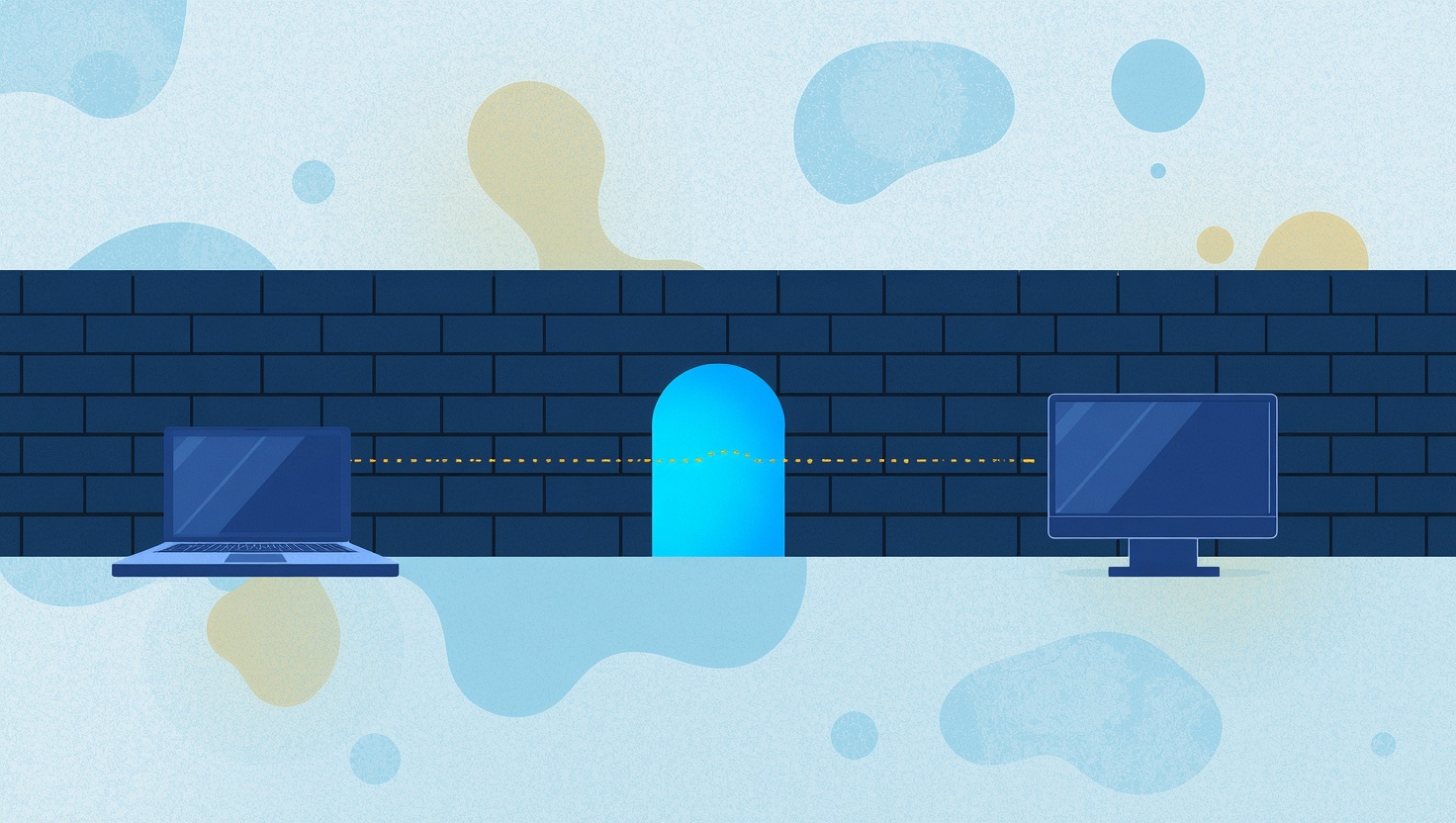
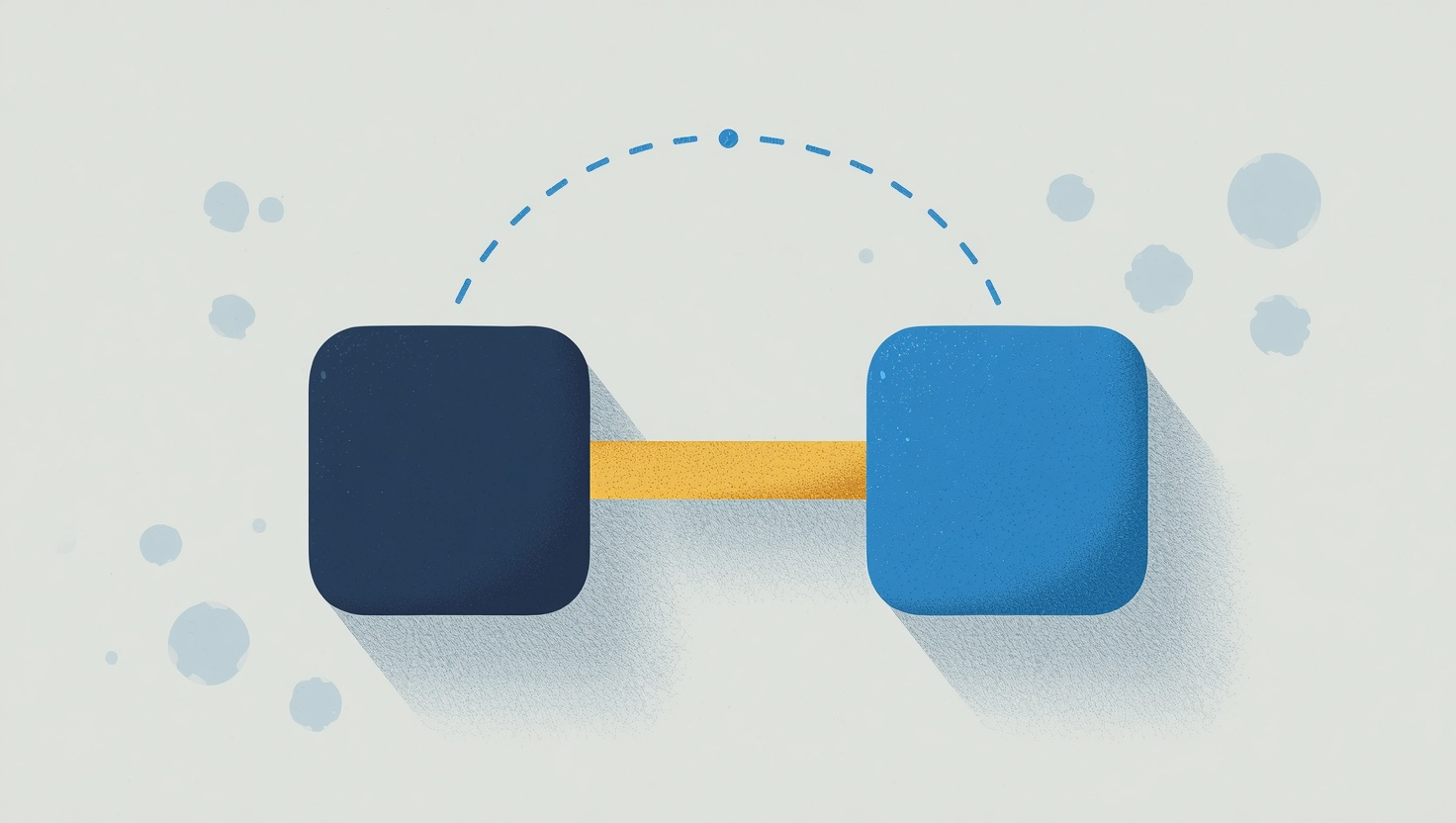
HopToDesk 1.46.85 adds a setting called Allow Direct Connections. When it is on, HopToDesk can connect the two devices straight to each other, with no relay in between. A shorter path often makes the session faster and lowers the delay.
Why the path matters
A relay can be far away from both devices. Think of two offices in the same city and a relay in another country. On the relay, every screen update makes that long trip. On a direct connection, the data takes the short route between the two offices.
The difference shows in small things. The mouse pointer follows your hand more closely, and the text you type shows up sooner.
Turn it on
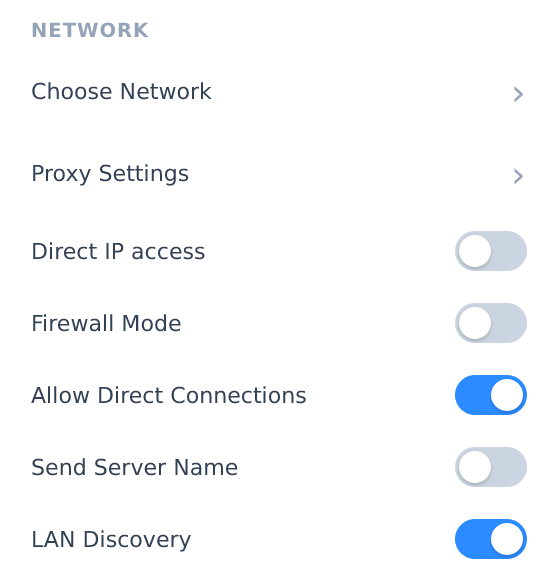
Allow Direct Connections is in the HopToDesk app for Windows, macOS and Linux. It is off until you turn it on. A direct connection needs the setting on both devices, and both devices need HopToDesk 1.46.85 or later.
- Open HopToDesk on the first device.
- Click the gear icon to open Settings.
- In the Network section, turn on Allow Direct Connections.
- Do the same on the other device.
What changes in a session
Connect the way you always do. When the two networks allow a direct connection and it responds faster than the relay, HopToDesk uses it. When they do not, the session uses the relay as it did before. You do not have to do anything during the session.
To see which path a session uses, point at the lock icon at the top of the session window. The label says Direct and encrypted connection or Relayed and encrypted connection. The change to a direct connection can take a few seconds after the session starts.
A direct connection uses the same end-to-end encryption as every other HopToDesk session, including the post-quantum protection.
When the session stays on the relay
Some networks do not allow a direct connection between two devices. In that case the session uses the relay, and it works the same way as before.
The setting is also off while a proxy is set or Network Compatibility is on. Network Compatibility (called Firewall Mode in older versions) is for strict networks that allow only web traffic, so those sessions stay on the relay.
For IT teams
On the Business plan, a device policy turns the setting on for a whole device group. In the dashboard, open Fleet, then Policies & API Keys, then the Device Policies tab. Create or edit a policy and select Turn On Direct Connections.
A custom build can also lock the setting on or off. The lock is under Advanced options in the Client Builder. The Pro plan and higher plans include Advanced options.