Session recording sounds simple until you ask where the video goes. Most remote desktop products answer with their own cloud: your screen sessions, uploaded to someone else's servers, held under someone else's retention rules, exposed in someone else's breach. For many IT teams that answer is exactly backwards. The recording exists for accountability, and handing it to a third party creates a new accountability problem.
HopToDesk took the other path. Session recording is now a complete, fleet-ready feature, and the video files stay on the machine that created them. Every one of them. HopToDesk does not host your recordings anywhere, so there is nothing of yours on our side to leak, subpoena, or delete.
What you get on the client
The desktop client has a Recording section in Settings with the controls that matter:
- Automatically record incoming sessions, so every time someone connects to this machine, a recording starts on its own.
- Automatically record outgoing sessions, so your technicians' work is captured from their side without anyone remembering to press a button.
- A retention setting. Choose 7, 30, 90, or 365 days, or keep recordings forever. Old files are cleaned up automatically.
- An open recordings folder button, so the files are always one click away.
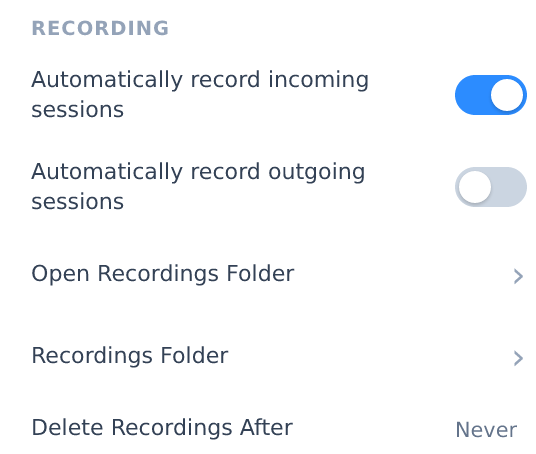
The recording folder location is configurable. Teams that want an off-machine copy point it at a folder synced by their own tools, such as a NAS or a cloud drive they control. Your storage, your rules.
One more piece, and it matters for consent laws in many countries: when a session is being recorded, the person at the recorded machine sees a visible recording indicator. Nobody gets recorded without a signal on their own screen.
What you get in the dashboard
Recording a thousand sessions is useless if nobody can find one later. The HopToDesk Dashboard now keeps a recordings library that fills itself. Whenever a client finishes a recording, it reports the details to your dashboard: file name, duration, size, which device, which peer, which direction, and when.
The details, not the video. The dashboard is the catalog, never the warehouse.
In the library you can search and filter by device, direction, and date, see durations at a glance, and copy the file path of any recording. When a recording lives on the computer you are browsing from, such as a technician reviewing their own outgoing sessions, the dashboard plays it right in the browser, straight from local disk. Nothing uploads. For every other recording, the library tells you exactly which machine holds it and where. Sessions in your reports also carry a recording badge, so you can see which sessions have a recording behind them.
Turning it on for a whole fleet
Auto-record on one machine is a checkbox. Auto-record on three hundred machines used to be a project. With deployment profiles, it is now part of enrollment: mark a profile to enforce incoming session recording, and every device that enrolls through it records automatically from day one. Combined with the library, an administrator can answer "do we have recordings of every session on the finance machines" with a filter instead of a walk around the office.
Why local-only is the feature, not the limitation
It is worth being direct about the design choice, because it is the opposite of the industry default:
- Your session video never transits or rests on HopToDesk servers. A breach of our infrastructure cannot expose a single frame of your sessions.
- Data residency comes free. The recordings live wherever the machines live, which is usually exactly where your compliance rules want them.
- Deletion is real. When your retention window removes a file, it is gone from the only place it ever existed.
- You are not renting access to your own evidence. There is no per-gigabyte hosting bill for video, and no vendor between you and your files.
For audits, what usually needs proving is that sessions were recorded, when, and of what. That is exactly what the dashboard library holds, and it holds nothing more.
Getting started
Update your clients, open Settings, and switch on the automatic recording you want. Recordings appear in your HopToDesk Dashboard library as they are made. To roll it out to a fleet, set recording in a deployment profile and enroll your devices through it.