Watch an experienced technician fix a computer and you will notice something: half the time, the desktop is just in the way. Restart a service, check a log, ping a server, free up disk space. These are keyboard jobs. Streaming an entire screen to type twelve characters is like renting a truck to deliver an envelope.
That is why HopToDesk has Remote Terminal. It is a third way to connect, next to Remote Control and File Transfer: a live command line on the remote machine, in a clean window on yours.
What you get
Enter the device ID, choose Remote Terminal, and a terminal window opens. Behind it, HopToDesk starts a real shell on the remote machine:
- On Windows, it looks for modern PowerShell first (PowerShell 7, then 6), falls back to Windows PowerShell, and finally to the classic command prompt. You always land in the best shell the machine has.
- On Mac and Linux, you get the remote user's own login shell, whatever they use day to day, with bash, zsh, and sh as fallbacks.
This is a proper terminal, not a toy. It has scrollback, copy and paste, and full support for interactive programs, so screen-filling tools like top or a text editor behave the way they should. When the shell exits, the window closes itself.
Why a terminal instead of a desktop
A few reasons this connection type earns its place:
- It is light. A terminal session moves keystrokes and text, not a video stream of the screen. On a slow connection where a desktop session crawls, a terminal is instant. On a metered connection, it uses a tiny fraction of the data.
- It is quiet. Nothing moves on the remote user's screen. You can check a log or restart a stuck service in the background while the person keeps working, instead of taking their mouse away mid-task.
- It is precise. Commands do exactly what you type, and the output comes back as text you can read, copy, and paste into a ticket.
- It works where desktops struggle. A machine under heavy load that cannot render a smooth desktop stream can still run a shell comfortably.
Staying in control of it
Remote Terminal follows the same rules as every other HopToDesk connection. The session is end-to-end encrypted, the connection must be authorized like any other, and the person at the remote machine sees the terminal connection in their connection window, just like a screen session. Nothing is hidden.
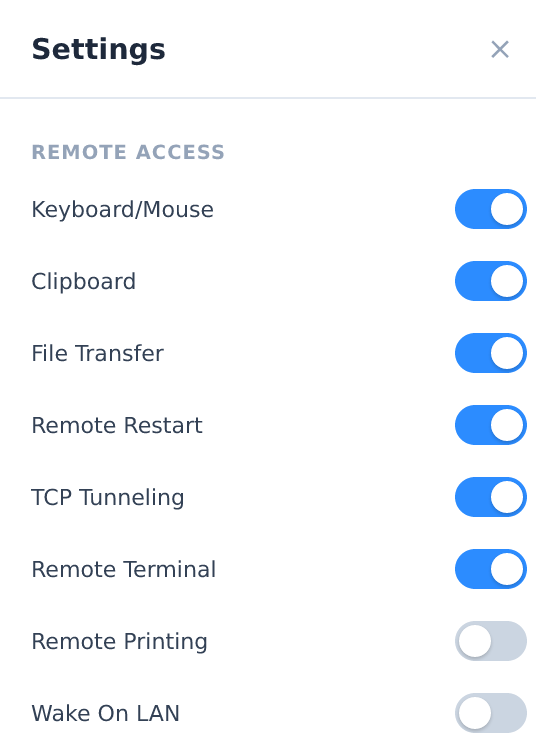
The feature is also a permission of its own. In the client's Settings, the machine's owner can switch Remote Terminal off entirely. A host with the toggle off will accept screen sessions but refuse terminal ones. For managed fleets, that decision can be made centrally.
Where it shines
- Quick server work: restart services, read logs, and check disk space on machines where you never needed the desktop in the first place.
- Slow links: when a remote site's connection is too weak for comfortable screen sharing, the terminal stays fast.
- Scripted fixes: paste a prepared block of commands and watch it run, rather than clicking through the same dialogs on the tenth machine of the day.
- Working alongside the user: investigate a problem in the background while the person at the machine keeps their screen, then take the desktop only if you actually need it.
How to use it
Open HopToDesk, enter the remote ID as usual, and pick Remote Terminal from the connection menu.
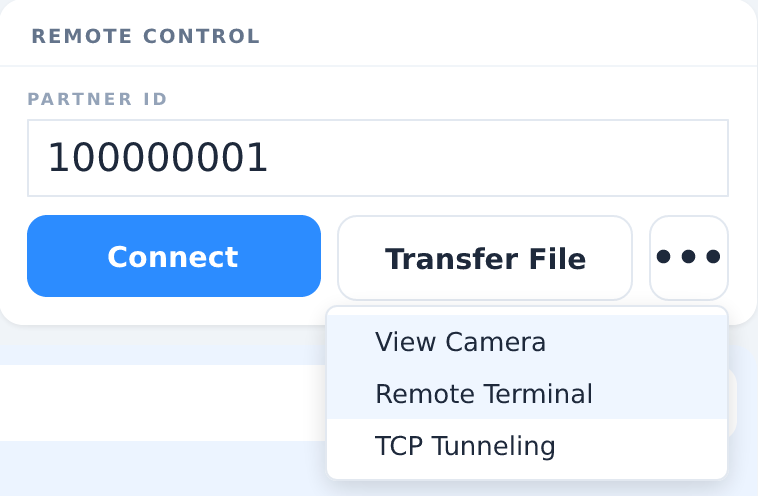
If you manage the remote machine, make sure the Remote Terminal permission is switched on in its settings.